Help & setup guide
MarginGuard reads your Shopify orders and refunds, works out which customers only ever buy with a discount code or return most of what they buy, and keeps a Klaviyo segment called MarginGuard: Don't discount current. You exclude that segment from your discount flows once; after that your promos skip those customers on their own.
What you get
The dashboard is one page. The number at the top is how many customers your enabled rules currently exclude, the switch turns the whole thing on and off, and the card below it is the single manual step you do in Klaviyo.
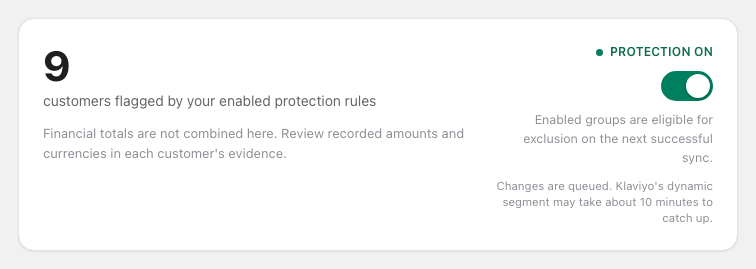
MarginGuard never sends email or SMS, never creates flows or campaigns, and never changes anything in your Shopify store. It reads orders, refunds and product costs, and writes a few properties on Klaviyo profiles that already exist in your account.
Setup, about ten minutes
Five screens inside the Shopify admin. Nothing reaches Klaviyo until the last one.
Install from Shopify
MarginGuard requests read access to orders, refunds, products and customer email addresses, plus the two mandatory GDPR webhooks. It has no write scopes for your store.
Connect Klaviyo
Click Connect Klaviyo, approve on Klaviyo's own consent screen, and you land back in Shopify. No API keys to copy; the connection can be revoked from either side.
Import your order history
One click starts a Shopify bulk export. A few hundred orders take under a minute; tens of thousands can take much longer. You can close the tab — the import continues and the page picks it up when you return.
Run the readiness report
Your orders are scored locally and you see who crosses the thresholds, with the reason for each. Still nothing in Klaviyo at this point.
Activate
Choose a plan and approve it in Shopify. Eligible first subscriptions include a 14-day trial. Then activate syncing to update matching Klaviyo profiles and create the segment.
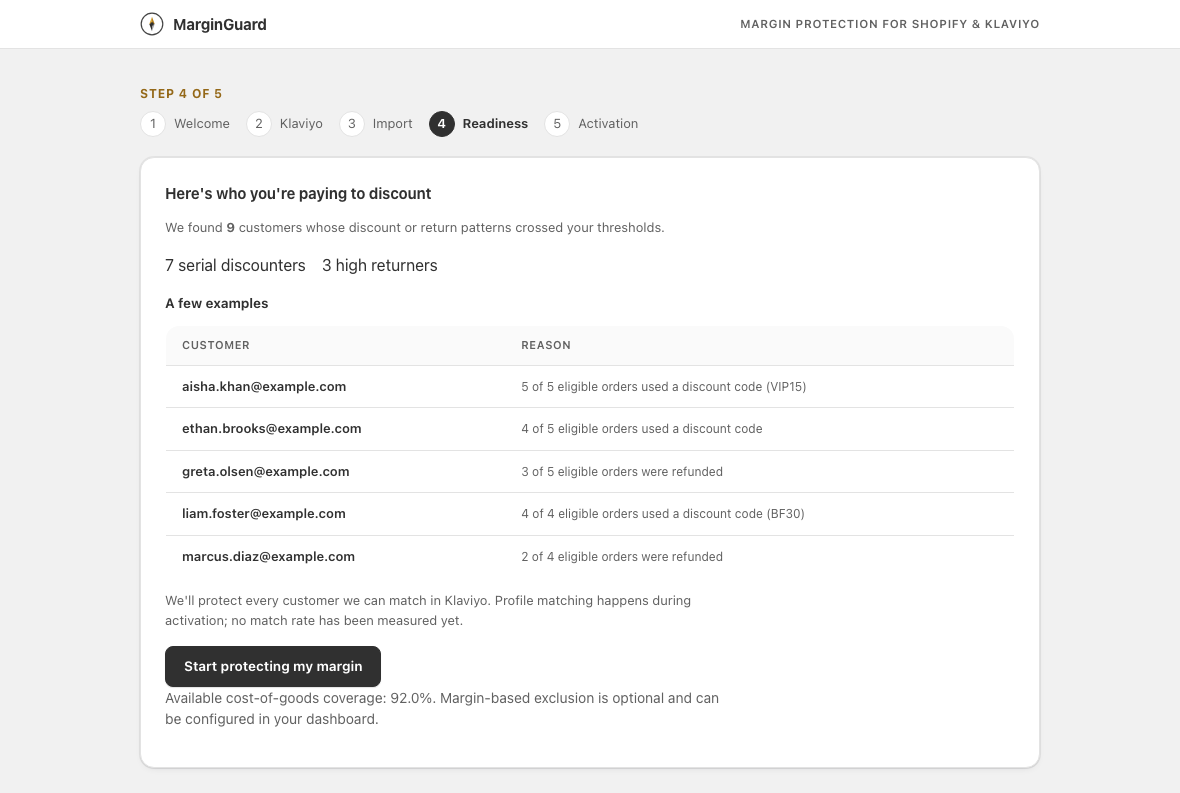
The readiness report is free and reversible: you can stop here, and you will still have seen exactly who MarginGuard would exclude and why.
Exclude the segment in your Klaviyo promos
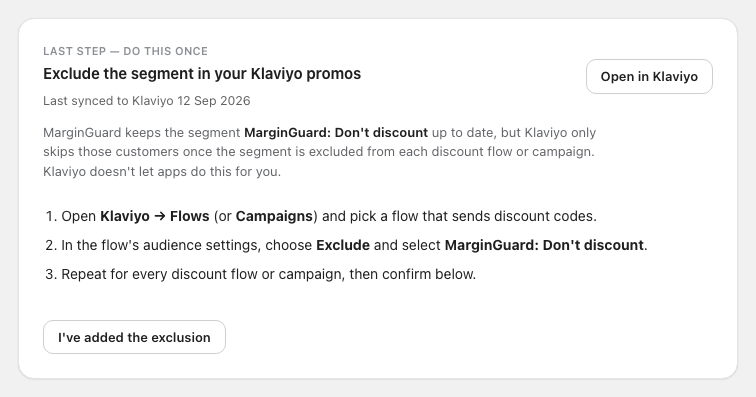
Klaviyo does not let an app change who a flow or campaign is sent to. So MarginGuard keeps the segment accurate, and you point your discount sends away from it. Once per flow, about a minute each.
Flows
- In Klaviyo open Flows and pick a flow that hands out discount codes — welcome series, win-back, abandoned cart with a code.
- Click the trigger card at the top of the canvas, then open Flow filters.
- Klaviyo cannot exclude a segment from a flow — only from a campaign. So filter on the property instead: Properties about someone → marginguard_exclude → is not → true. MarginGuard writes that property onto every profile it scores, so the filter follows the same list as the segment.
- Save, and make sure the flow is back to Live. Repeat for every discount flow.
Filtering on the trigger stops flagged customers entering the flow at all. If you only want to skip the discount email inside a longer flow, put a conditional split on the same property instead.
Campaigns
- Create the campaign as usual and go to the Audience step (older accounts call it Recipients).
- Under Send to pick your usual list, then click + Don't send to and choose MarginGuard: Don't discount.
- Klaviyo drops those profiles from the send; the estimated recipient count updates immediately.
Klaviyo saves this per campaign, so add the exclusion to your campaign template or to a saved audience if you send promos often.
Two things worth knowing. Klaviyo's segment membership is dynamic: after MarginGuard writes a change, allow up to about ten minutes before the segment count moves. And Klaviyo occasionally renames these controls between UI versions — if a label reads slightly differently in your account, you are looking for the option that excludes a segment from the audience.
Back on the MarginGuard dashboard, press I've added the exclusion. The card switches to a confirmed state that shows the date and the last sync time, so you can tell at a glance that the loop is closed.
How a customer gets flagged
Three independent rules. A customer is excluded if any enabled rule matches, and you can see and change every number.
What counts as an order
An order is eligible when it was placed in the last 365 days, is paid, is fulfilled and was not cancelled. A customer needs at least two eligible orders before any rule can apply, so one-off buyers and first-time discount users are never flagged.
Serial discounter
At least 80% of the customer's eligible orders used a discount code, and at least two of them did.
Automatic discounts that need no code are ignored by default, so a store-wide sale does not turn your whole list into discounters. You can opt to count them in Advanced.
Frequent returner
At least two eligible orders were refunded and refunds cover 40% or more of their orders.
Measured by order count by default. You can switch to refunded value, which suits stores where a single large return matters more than several small ones.
Unprofitable — optional
Net margin across at least two orders is at or below zero, using Cost per item from your Shopify products.
Requires costs on at least 80% of the active catalogue, and at least 90% cost coverage for that particular customer's items. Off until you enable it.
A worked example
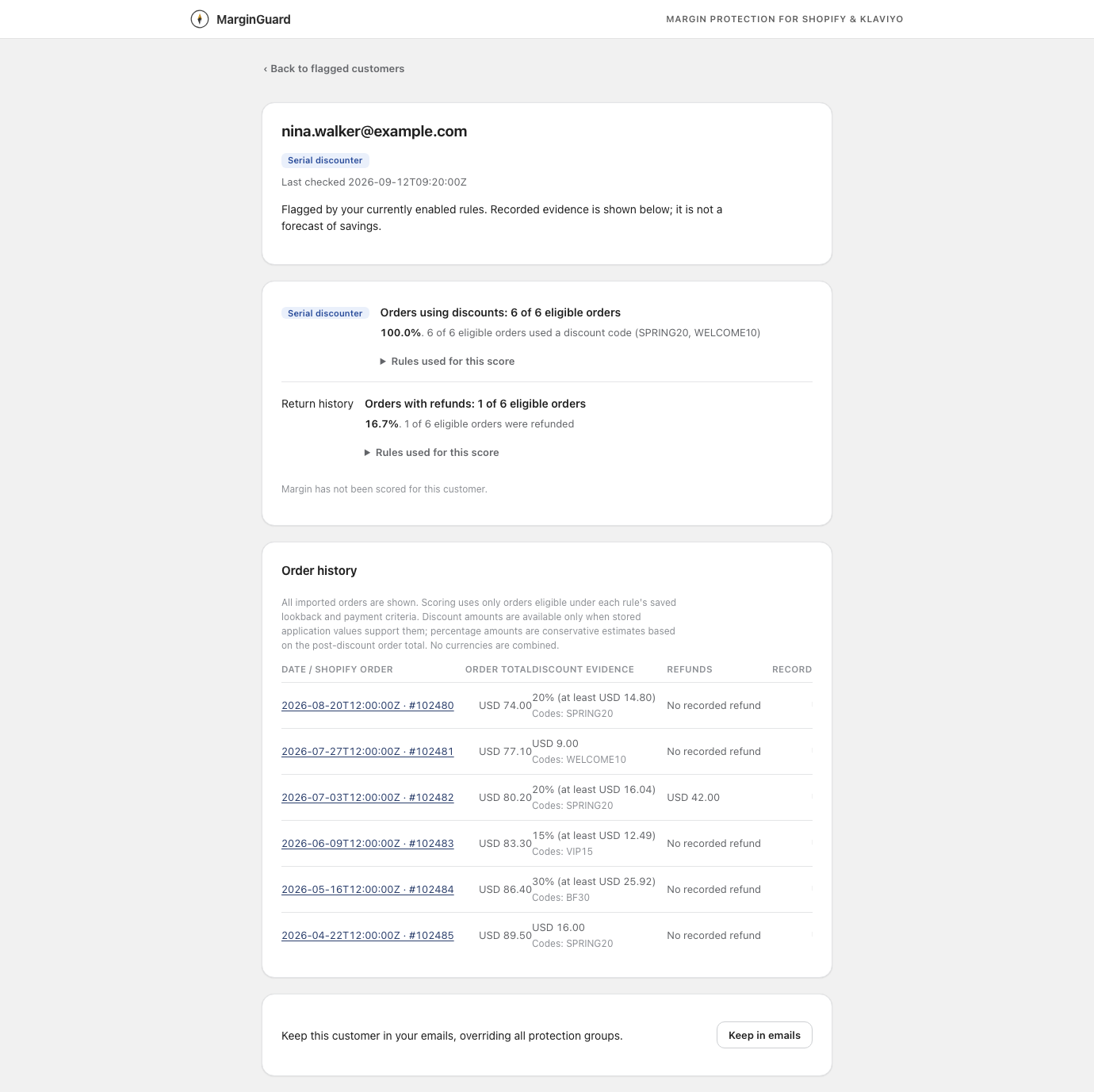
A customer has six eligible orders in the window; all six used a code (SPRING20, WELCOME10, VIP15, BF30). The discount rate is 6 ÷ 6 = 100%, above the 80% threshold, with more than two code orders — so the Serial discounter rule matches. One of those orders was refunded: 1 ÷ 6 = 16.7%, below the 40% return threshold, so the returner rule does not match. They are excluded on the discount rule alone, and the app records exactly that.
Reading a customer's evidence
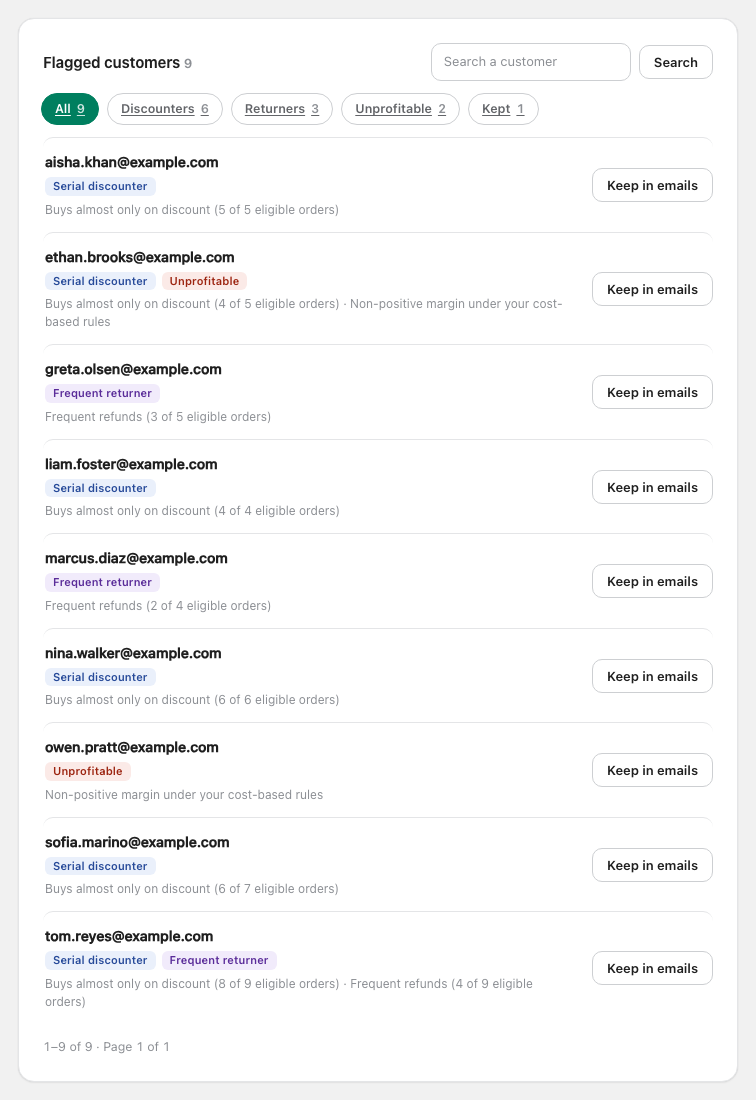
Click any customer. Every decision is shown with the orders behind it, so you can disagree with it on the spot.
About the numbers
- Rules used for this score expands to the exact thresholds that were in force when the customer was last scored — useful after you change a setting.
- Discount evidence shows a money amount when Shopify stored one. For percentage discounts you see the percentage and a conservative floor calculated from the post-discount total, labelled “at least”.
- Recorded margin and cost basis only appear where product costs were available; otherwise the row says so rather than guessing.
- Amounts in different currencies are never added together. Each row keeps its own currency.
Tuning the rules and running the list
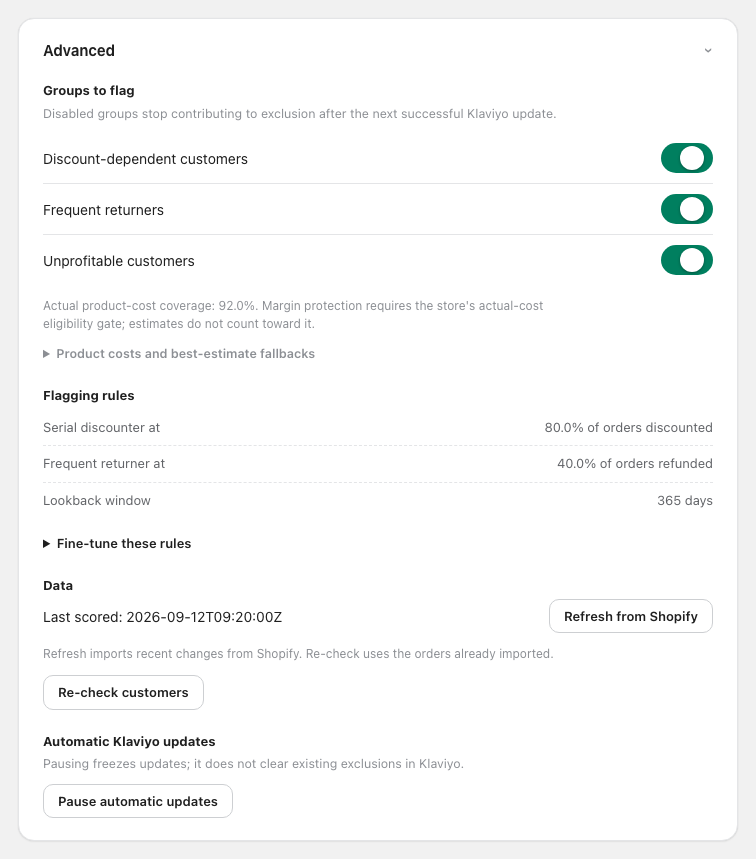
- Groups to flag. Turn discounters, returners or unprofitable customers off independently. A disabled group stops contributing on the next successful Klaviyo update, so those profiles leave the segment.
- Fine-tune these rules. Change the percentages, the minimum order counts or the lookback window, then preview: MarginGuard dry-runs the new rule over your existing orders and lists who would be added and removed before you apply it.
- Keep in emails. On any customer row, this overrides every rule until you press Put back on list. Use it for VIPs, wholesale partners, staff and friends. Their evidence stays visible.
- Refresh from Shopify pulls recent changes; Re-check customers re-scores the orders already imported. Day to day you need neither — new orders and refunds arrive over Shopify webhooks, and the scorers run on a schedule.
- Pause automatic updates freezes writes to Klaviyo without clearing anything, which is what you want while you experiment with thresholds.
- The protection switch is the big lever: off means the next sync marks every profile as not excluded and the Klaviyo segment empties. Turning it back on restores the list.
What is written to Klaviyo
Profiles are matched by email and only updated if they already exist. MarginGuard never creates profiles, subscribes anyone, or sends messages.
| Profile property | Values | What it means |
|---|---|---|
| marginguard_exclude | true / false | The only property the segment is built on. True when an enabled rule matched, protection is on and the subscription is live. |
| marginguard_discount_dependency | serial / none | Result of the discount rule for this customer. |
| marginguard_return_dependency | high / none | Result of the return rule. |
| marginguard_margin_dependency | negative / positive / insufficient_orders / insufficient_cogs / none | Result of the optional margin rule, including why it could not be judged. |
| marginguard_last_evaluated | timestamp | When this profile was last stamped. |
The segment definition is a single condition: marginguard_exclude equals true. You can build your own segments on the dependency properties — for example “full-price buyers” as marginguard_discount_dependency equals none.
Customers who exist in Shopify but not in Klaviyo are skipped. If you uninstall MarginGuard, the properties and the segment remain in your Klaviyo account; delete the segment there if you no longer want it. Shopify's customer-redaction and shop-redaction requests are honoured automatically, and are described in the privacy notice.
$15 every 30 days, or $150 a year
Reviewing your customers is free. You pay for keeping the segment in sync.
An eligible first subscription includes a 14-day introductory trial on either plan. Cancelling or reinstalling does not reset the trial. Choose a plan, then review the price and trial shown on Shopify's approval screen. Charges appear on your Shopify invoice; MarginGuard does not collect your card details. Billing in the app shows the current contract and lets you cancel renewal. After a cancelled plan's paid access ends, you can choose another plan.
Cancelling a paid subscription from Billing preserves protection until the verified paid period ends, without a prorated refund. Cancelling during the trial ends protection without a charge. When access ends, MarginGuard queues an update setting marginguard_exclude to false; it does not delete all scoring properties. The segment and saved customer evidence remain. Klaviyo errors, paused updates or disconnected authorization can delay removal from the segment; check the app's sync status. Resubscribing queues a refresh of the current protection settings.
Agency-managed stores use their agency's subscription and do not need a separate Shopify plan. If Billing reports a legacy Dodo subscription, contact support before starting a Shopify plan: the old charge must be verified and ended first. Uninstalling the app does not cancel a legacy Dodo charge.
If something looks wrong
| What you see | Most likely cause | What to do |
|---|---|---|
| The flagged list is empty | No customer crossed the thresholds, the import is still running, or every group is disabled. | The dashboard states which. If the count reads Importing, wait; if it reads Not checked yet, run Re-check customers. |
| A flagged customer still received a discount email | The segment is not excluded from that particular flow or campaign, the Klaviyo profile email differs from the Shopify order email, or the segment had not refreshed yet. | Check the flow's filters, compare the two email addresses, and allow ten minutes after a sync. |
| “Klaviyo connection needs attention” | The OAuth grant was revoked or expired. | Open Klaviyo in the sidebar and reconnect. Scores stay intact; only writing is paused. |
| “Couldn't update Klaviyo” | A write failed, usually a rate limit or a transient Klaviyo error. | Press Retry update. Scheduled syncs also retry on their own. |
| The Klaviyo segment is empty although customers are flagged | Protection is off, updates are paused, or the subscription is not active. | Check the switch, Pause automatic updates in Advanced, and the Billing page. |
| The import seems stuck | Large stores take a while; a failed export shows an error banner. | Leave it and come back. If a banner reports an error, retry the import from the same screen. |
Frequently asked
Does MarginGuard email my customers?
No. It writes profile properties and maintains one segment. What your flows and campaigns do with that segment is entirely yours.
Does it change anything in my Shopify store?
No. The app holds read scopes only — orders, refunds, products and customer emails. It cannot edit orders, products, discounts or customers.
Why is this customer on the list?
Click them. You get the matched rule, the exact ratio, the thresholds used, and every imported order with its codes and refunds.
Can I keep a customer in my emails anyway?
Yes — Keep in emails on their row overrides every rule until you undo it.
Will a store-wide sale flag everybody?
No. Automatic discounts that require no code are ignored by default; only entered discount codes count.
What if I have no product costs in Shopify?
The two main rules work without costs. The optional margin rule stays unavailable until Cost per item covers at least 80% of your active catalogue.
What happens to my data if I uninstall?
MarginGuard stops reading your store. The Klaviyo properties and the segment remain in your own account. Shopify's redaction requests are honoured automatically; see the privacy notice.
Still stuck? Write to us.
Use Feedback inside the app, or email admin@shelfcompass.com with your *.myshopify.com domain and what you expected to happen. Never send access tokens or API keys. We answer within one business day.